

iReady - At Home

If you are looking for a simple learning activity on snow days or for extra support, have your child log into i-Ready.
Students already use i-Ready daily at school with their homeroom teacher during their Acceleration Block. Each week, they work toward 40 minutes of lessons in both Reading and Math and aim to pass lessons with a score of 70% or higher.
Families can check progress using the “My Progress” tab. We also encourage students to use scrap paper and take their time, rather than clicking through quickly without fully understanding.
See below for iReady Family Resources and answers to common questions to support families with understanding iReady and how to use iReady at home!
iReady Family Resources

Family Guide
Use this guide to better understand i-Ready and how it will help your student build essential skills in reading and mathematics.

Fridge Tips for i-Ready Lessons at Home
Use these Fridge Tips to help support your student with online lessons at home.
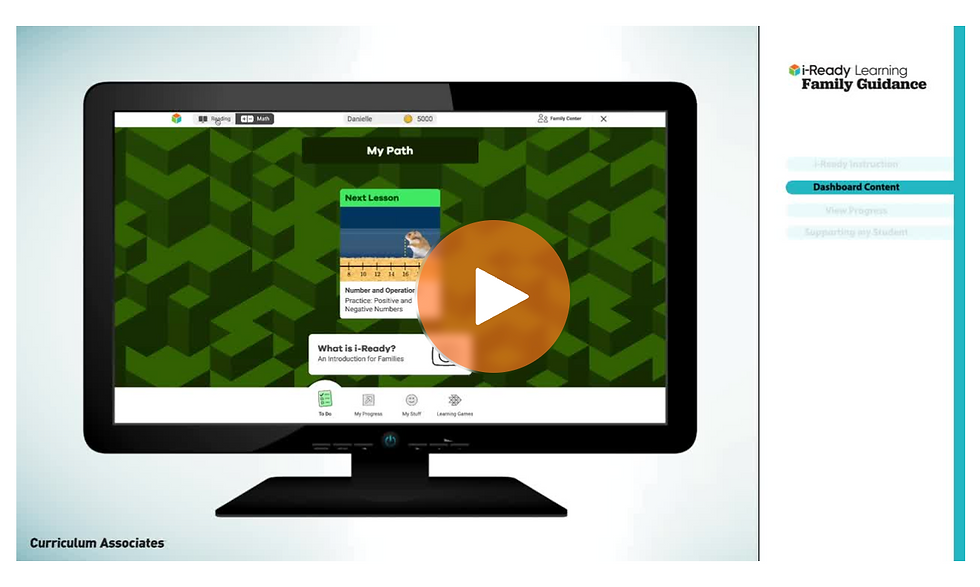
Video: i-Ready Lessons at Home
Watch this video to learn how to help support your student with online lessons at home.
iReady FAQs for Families:
What Is i-Ready?
i-Ready is an online program for reading and/or mathematics that will help your student’s teacher(s) determine your student’s needs, personalize their learning, and monitor progress throughout the school year. i-Ready allows your teacher(s) to meet your student exactly where they are and provides data to increase your student’s learning gains. i-Ready consists of two parts: Diagnostic and Personalized Instruction.
Learn more about i-Ready by watching this video!
How does i-Ready work with what my student is learning in the classroom?
i-Ready is designed to complement what is being taught in the classroom. Your student’s teacher will have information from the Diagnostic that shows where some extra review would be beneficial, which will help the teacher provide the best possible support. Your student will also work on online lessons that bolster the areas of greatest need. Your student’s teacher can see which lessons have been completed and offer help any time your student needs extra support.
How can I support my student’s learning?
Speak with your student about using i-Ready to help them prepare for class work. Also explain that i-Ready will show teachers where your student is doing well and which topics need some more review.
Encourage your student to take each lesson and quiz question seriously. Emphasize “thinking before clicking,” because just clicking through will not give teachers an accurate report of what your student knows and is able to do.
Encourage your student to use the tools that will appear at the bottom of the screen in some lessons.
Contact your student’s teacher about how often your student should practice at home, or with any other questions about i-Ready.
How can I help my student prepare for taking the Diagnostic?
It is important to remember that the main purpose of these assessments is to allow i-Ready to personalize your student’s online learning path and provide information to your student’s teacher(s) so they can best meet students’ needs.
In regular circumstances, students take their i-Ready assessments at school, but during these special times they might need your help in providing a supportive environment to take assessments at home. Click here for guidance and tools to help when your student is taking an i-Ready assessment at home.
To help prepare your student for the i-Ready Diagnostic, encourage them to:
Get a good night’s sleep and eat breakfast the day of the assessment.
Try their best on each question and try not to rush.
Try not to worry about questions they do not know—remind them that it is expected they will get about half of the questions correct.
Use paper and a pencil to show work for math questions.
Be respectful of other students who take longer to finish.
To deepen your student’s learning in Personalized Instruction, you can:
Discuss your student’s progress on their i-Ready lessons.
Celebrate your student’s learning and growth.
Encourage them to use i-Ready at home (Note: They will need access to a computer and internet and login information. To check if your system meets i-Ready system requirements, please visit i-Ready.com/Support to run the system check).
How do I know how my student performed on the Diagnostic?
Every time your student takes the Diagnostic, your student’s teacher may choose to send you a report. Note that the Diagnostic’s main purpose is to help teachers guide individualized student instruction, so they may decide not to distribute the report. You can reference the report to see how your student performed on the Diagnostic. Your student may also be able to view their score in their “Completed Work” section in “My Progress.” Check in with your student’s teachers to discuss progress toward goals, placement levels, and proficiency.
Download this PDF and watch this video to learn more.
How can I better understand my student’s Diagnostic results?
Ask your student’s teacher about your student’s Diagnostic results and how you can support learning at home.
Discuss the data with your student, celebrate their strengths and progress, and collaborate with them on planning how they will reach their goals.
Questions to ask your student about their data:
“What do you notice when you look at this data?”
“Can you identify strengths from this report?”
“What is something you feel like you are doing well?”
“What areas are challenging to you?”
“Let’s look at your data to see where and how we can work together to improve in those more challenging areas.”
How should I discuss data with my student?
My Progress: Ask your student to click on My Progress at the bottom of the home page. Consider asking general questions such as, “How is i-Ready going?” “What are you learning about?” or “What are you working on?”
Lesson Stats: This section shows your student stats about their lessons.
Time-on-Task: Look at the number of minutes your student has spent this week on Personalized Instruction. Consider asking, “Have you met your goal?”
Lessons Passed: Look at the total number of lessons your student has passed this school year. Consider asking, “What is your goal?” or “What are you proud of?”
Lesson Streak: See how many lessons passed in a row your student has. Congratulate them and ask about what they are learning.
Completed Work: Ask your student to click on Completed Work. You will see lesson names and quiz scores. Consider asking:
“What did you learn in ___ lesson?”
“What did you enjoy?”
“What did you find challenging?”
“How do these lessons relate to your learning goals?”
You might also see your student’s last Diagnostic score. Consider asking:
“What were your strengths?”
“What are your areas for growth?”
“What are your goals?”
iReady at Home: How do I help my student start a lesson?
My Path. Your student should click the green Next Lesson button to begin the next lesson in your student’s personalized lesson path.
Teacher-Assigned Lesson. If your teacher has assigned your student additional lessons, they will see a blue button. Click the blue button to begin these extra lessons. Note: If your student only has a green button reading “Math Diagnostic” or “Reading Diagnostic,” this means the Diagnostic assessment has been assigned. Your student should not work on their assessment at home.
Complete lesson. Your student should complete their lesson, trying their best. Please do not offer support or help during the lesson, as your student’s lesson is just right for their level, and it’s important for their teacher(s) to get accurate data about what your student knows and needs to learn. Note: Your student should aim for 45 minutes of i-Ready instruction per subject per week and maintain a range of 30–49 minutes of Personalized Instruction. Your student’s school may have varying guidance.
Learning Games. If your student’s school has access to Learning Games, they can click the Learning Games icon on the bottom right. Learning Games provide mathematics fluency and skills practice that fosters internal motivation while encouraging productive struggle. Students should play games for roughly 20 minutes weekly.
Where can I go to see how my student is performing on i-Ready online lessons?
Log in with your student’s username and password.
View your student’s “My Progress” box.
Click on “Completed Work” to see your student’s progress.
Bonus: What is considered passing a lesson?
The default passing threshold for i-Ready lessons is 67 percent, or two out of every three questions correct, but your school district has the flexibility to adjust the passing rate. Please check with your student’s teacher to find out the passing rate in your school.


Comments